- Published on
How to use the TV in the Royal Caribbean Stateroom
- Authors

- Name
- Jonathan Branan
The TV in the Royal Caribbean stateroom is a great way to enjoy your favorite shows and movies while on your cruise. However, connecting to the TV can be a bit tricky if you're not familiar with the setup. In this guide, we'll walk you through the steps to connect your devices to the TV and make the most of your entertainment options.
TLDR: The TV in the Royal Caribbean stateroom can be connected to via HDMI 1 and selecting the input in the channel list.
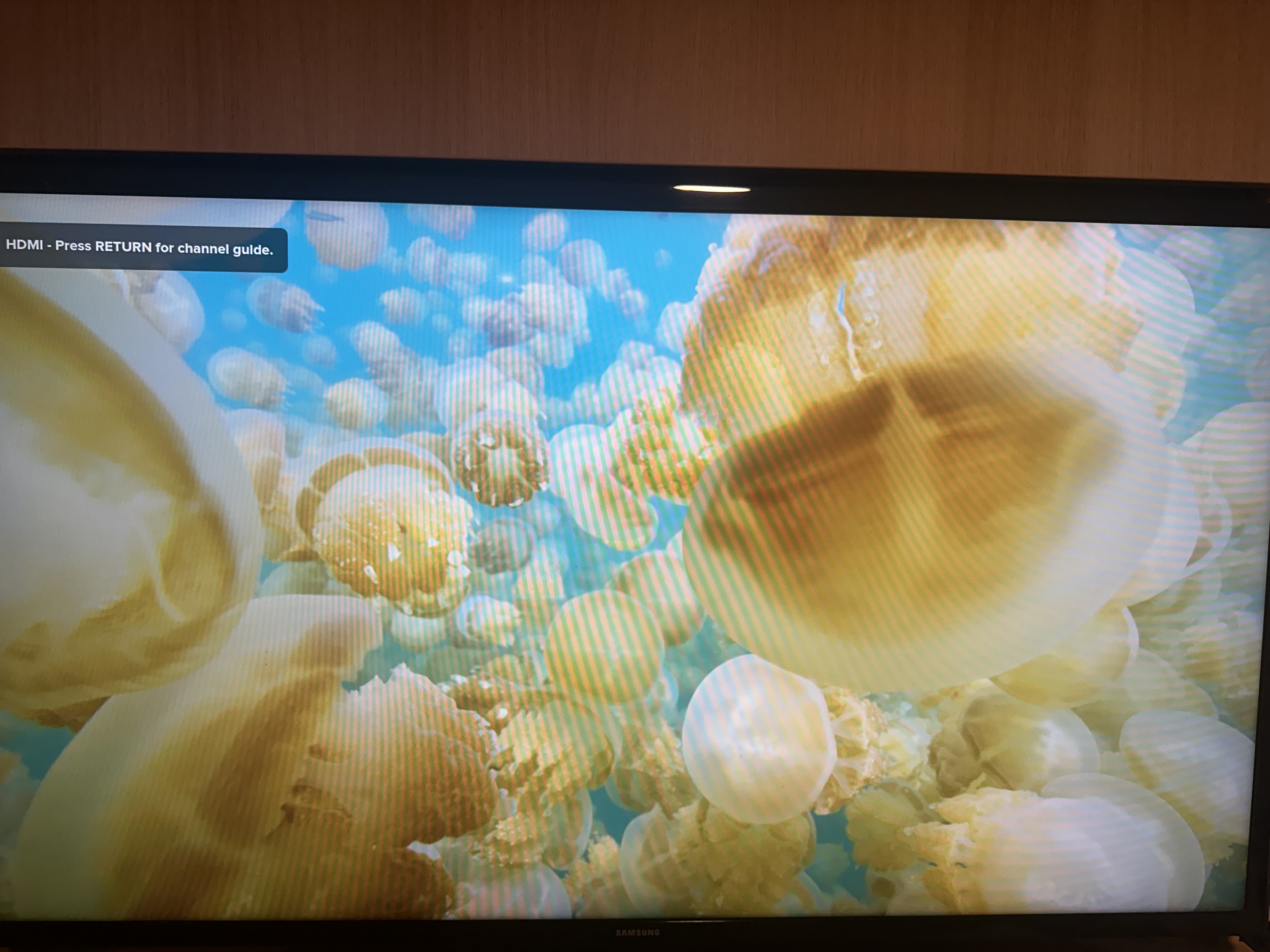
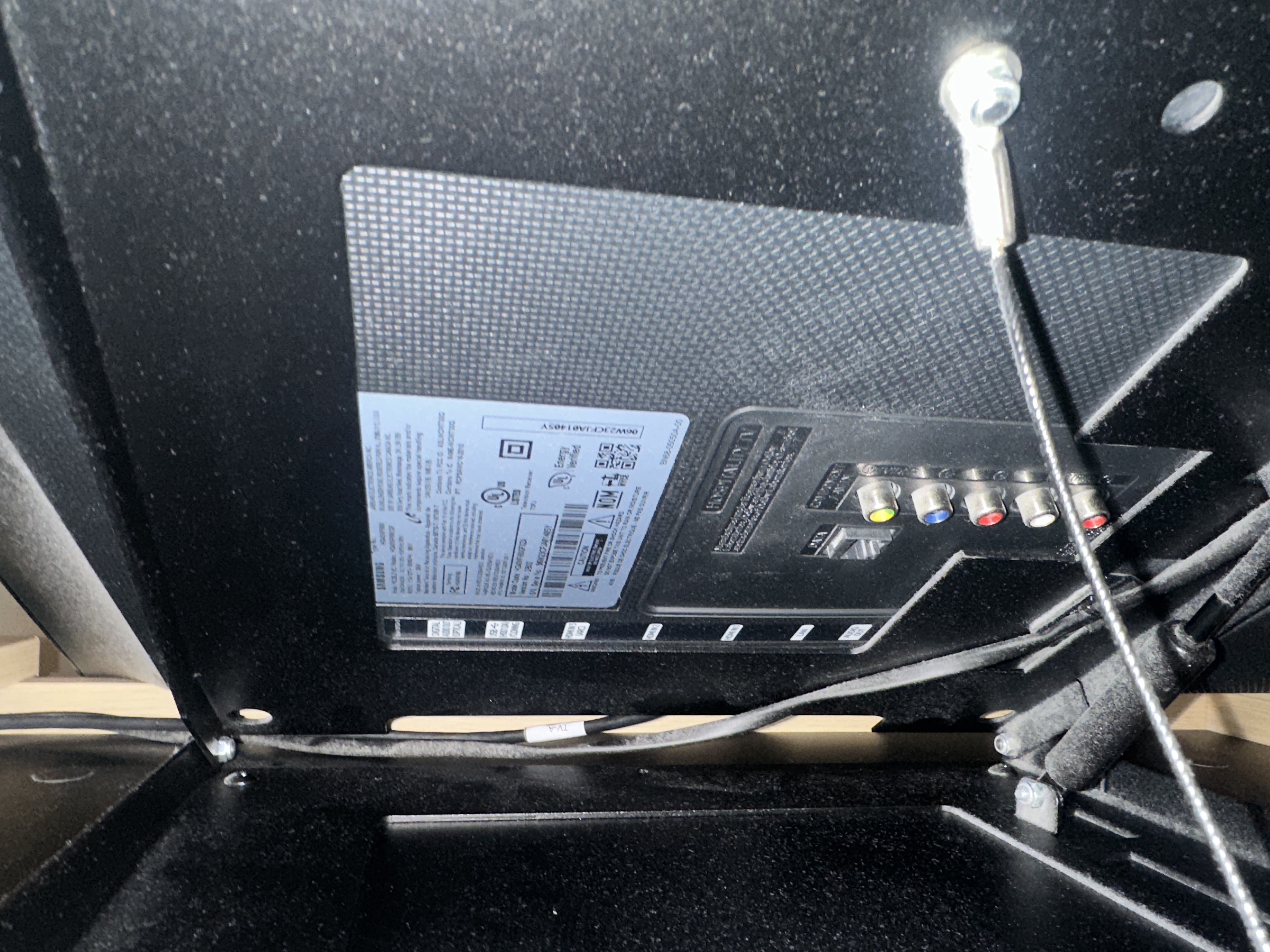
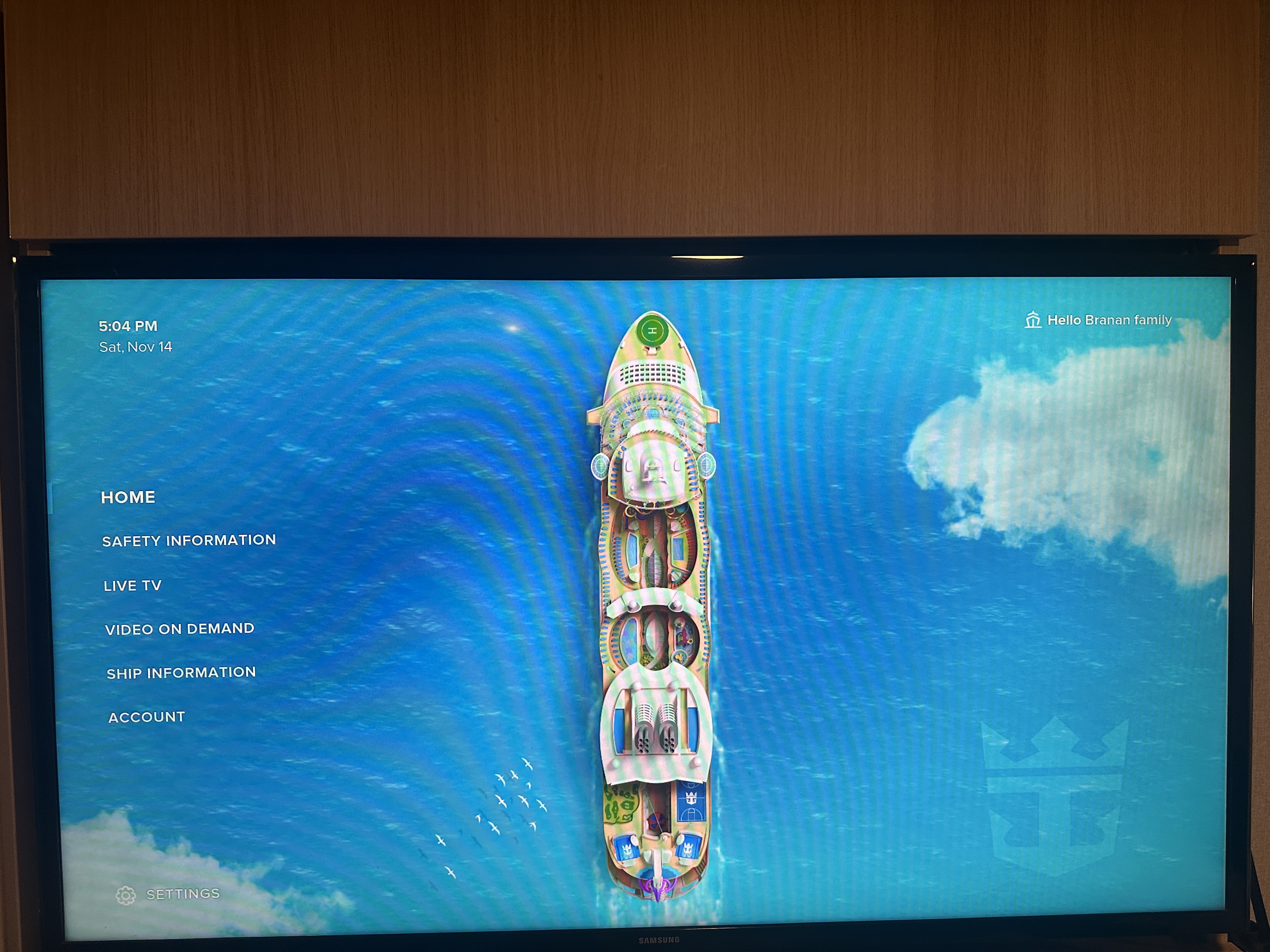
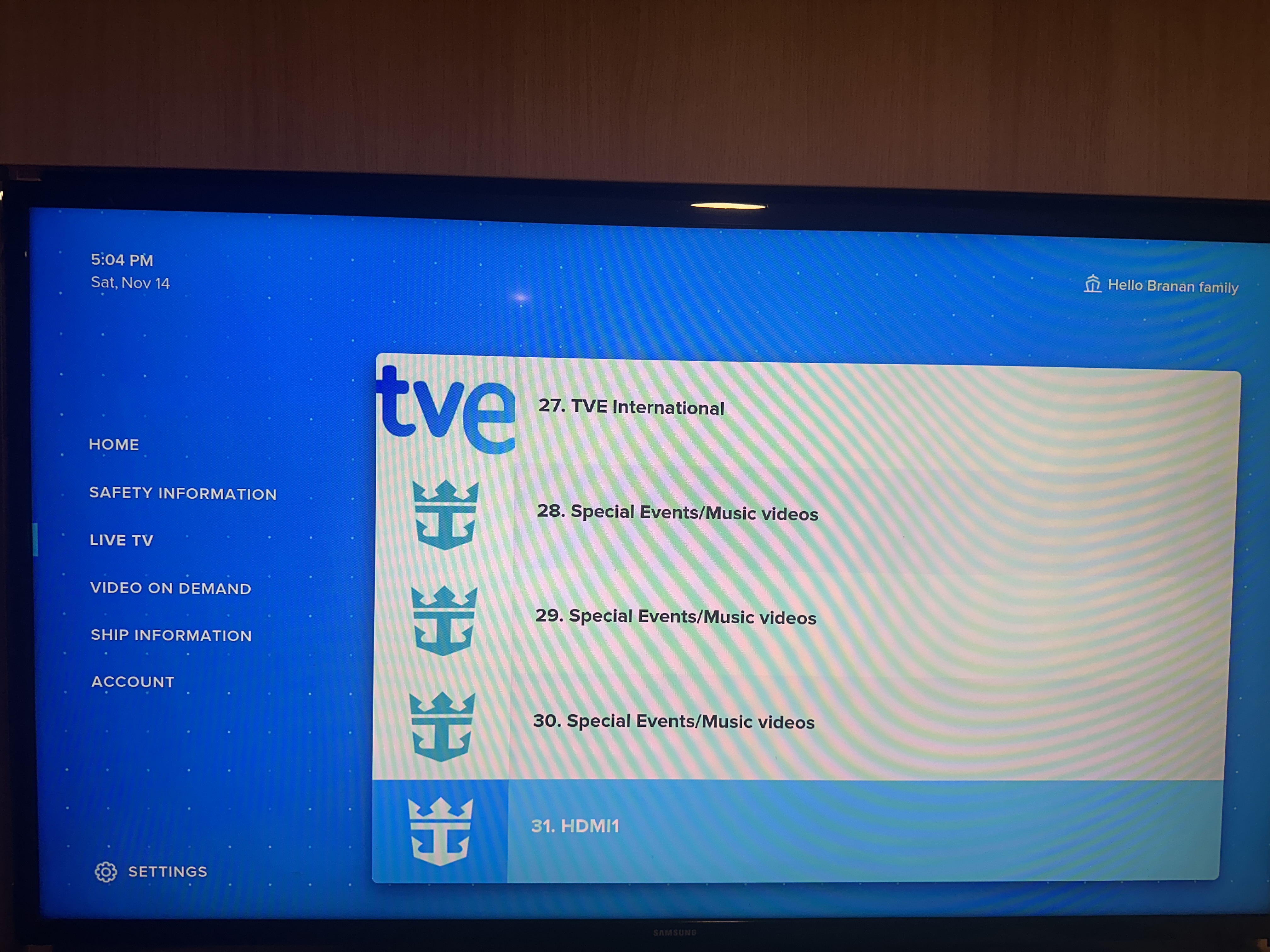
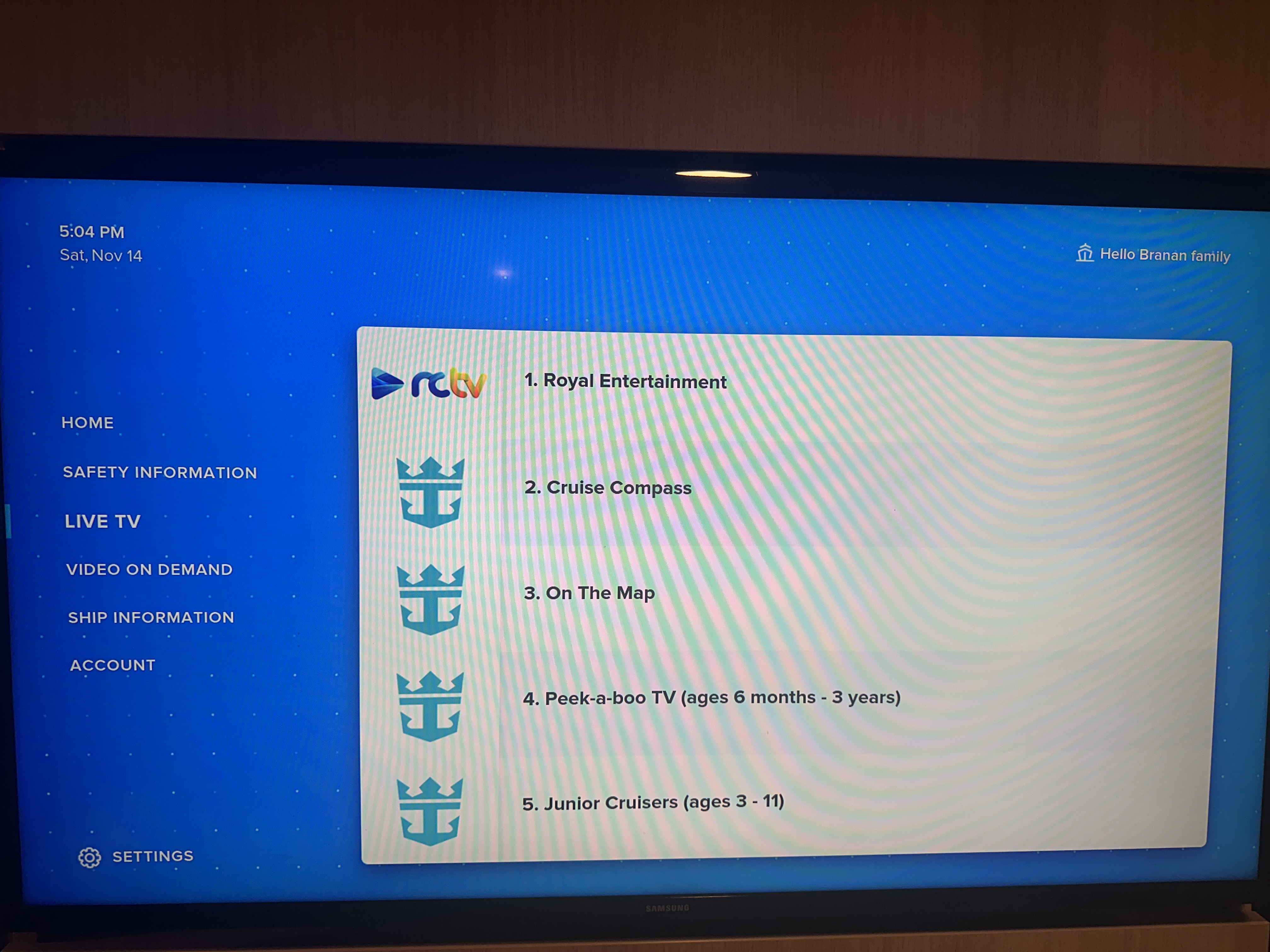
The TV is controlled by the ethernet connection from a central server, which means that you can only connect to the TV via HDMI 1. To do this, simply plug in your device (such as a laptop or streaming device) into the HDMI 1 port on the TV. Then, use the remote control to navigate to the channel list and select the input for HDMI 1.
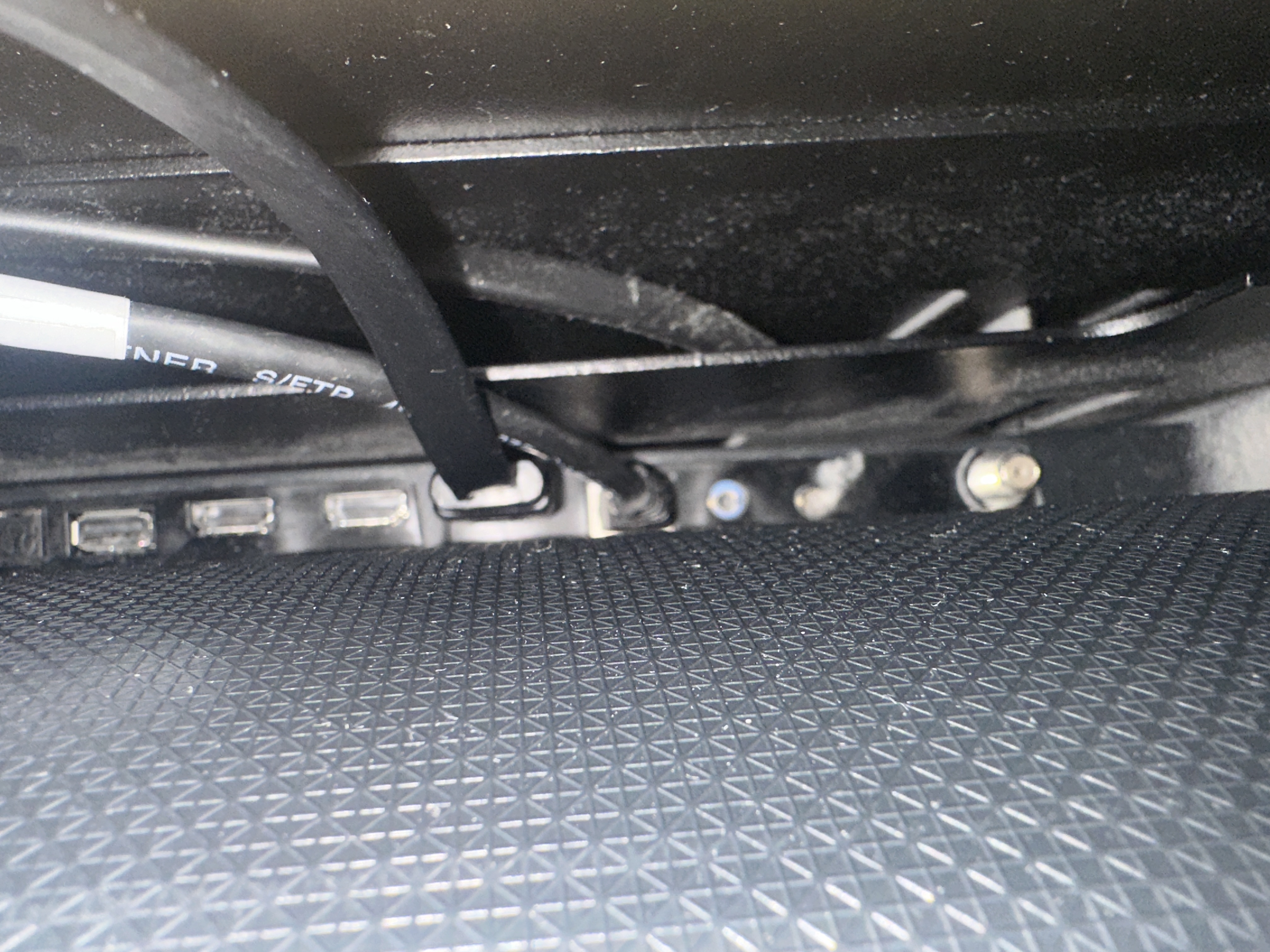
Caution: Unplugging the ethernet cable from the TV may disable certain TV services (such as onboard information channels or streaming features) and could reset some settings. Proceed only if you are comfortable with these changes, and consider asking the ship's staff for assistance if unsure.
If you need more than one HDMI connection, you will have to unplug the ethernet cable from the TV and restart the TV. You may have to wait a couple of minutes for the TV to timeout and allow full TV control. Once the TV is restarted, you can then connect your second device to the HDMI 2 port and select the input for HDMI 2 on the remote control. If you need more than one HDMI connection, you will have to unplug the ethernet cable from the tv and restart the TV. You may have to wait a couple of minutes for the TV to timeout and allow full TV control. Once the TV is restarted, you can then connect your second device to the HDMI 2 port and select the input for HDMI 2 on the remote control.